
How to Fix Non-Printable STL Files with MeshLab
Written with artificial intelligence.
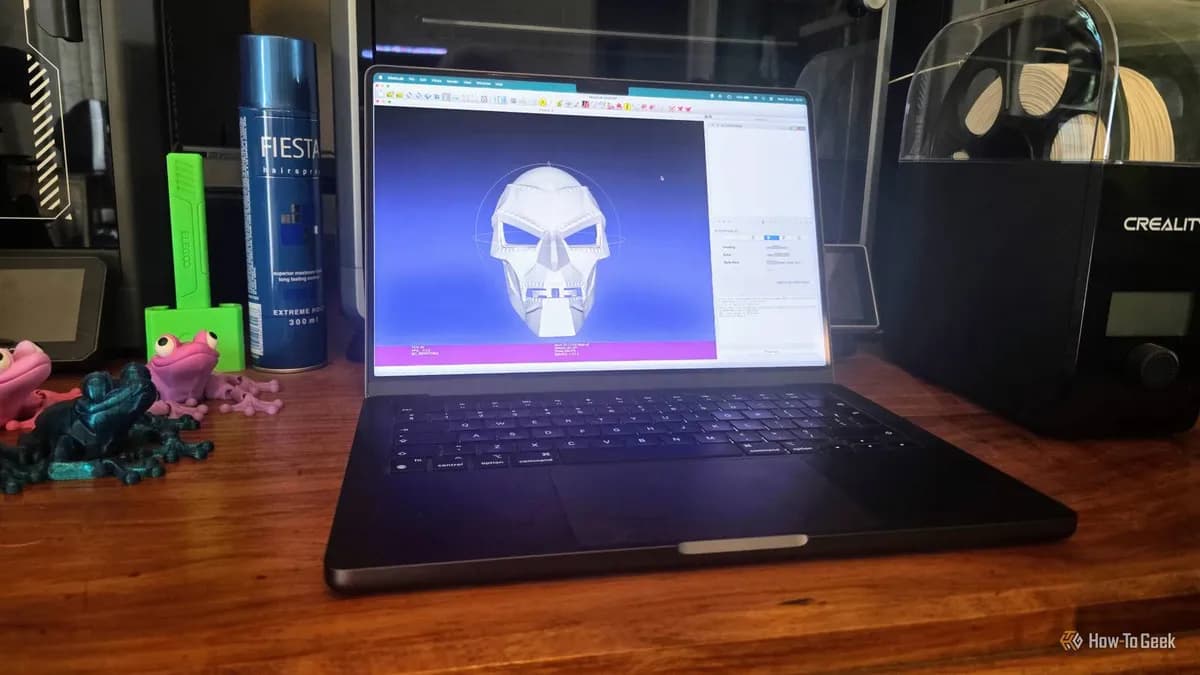
MeshLab offers powerful tools to correct hidden geometry errors in STL files that can hinder 3D printing. By using its diagnostic and repair features, users can ensure their models are printable with slicers like PrusaSlicer and Cura.
Understanding STL File Issues
When preparing a 3D model for printing, hidden imperfections in STL files can lead to print failures. While slicers like Cura and PrusaSlicer have automatic repair functions, they may not resolve all issues. For these cases, MeshLab is a valuable tool for diagnosing and fixing complex model errors.
Using MeshLab for Repairs
1. Open your STL file in MeshLab. 2. Go to Filters -> Quality Measures and Computation -> Computer Topological Measures to generate a report on the model’s integrity. This report will highlight non-manifold faces and other issues.
3. Address the identified problems:
- Use Remove Duplicate Vertices to merge identical vertices.
- Apply Remove Duplicate Faces to eliminate repeated triangles.
- Utilize Repair non-Manifold Edges and Repair non-Manifold Vertices for more complex issues.
4. Rerun diagnostics after each repair to evaluate progress. If issues persist, you may need to iterate your repairs.
5. Once satisfied, export the mesh as a new STL file using File -> Export Mesh As for a fresh iteration to slice again.
Final Checks
Before slicing, carefully inspect the model preview for new defects. If necessary, consider making a draft-quality print to minimize material waste while verifying the model's printability.